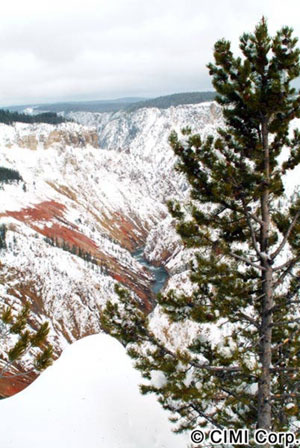
 Digital photography, like something else I’ve forgotten the details of, is one percent inspiration and ninety-nine percent perspiration. The fun part is going to an exotic place and taking a picture like the one above. The sweaty part is surely the grunt work that has to be done to convert what the camera or scanner captures into something you can print or display online. Most digital photographers have a system for getting images prepared, and the process of making it happen is called a “work flow”. While you can certainly construct your own workflow by selecting steps from one or more imaging programs and performing them in sequence, most people will want to simplify their task by introducing some automation. Photoshop, fortunately, gives you a variety of tools for that purpose, and there are third-party extensions and aids available as well.
Let’s start with the basics. There are five different kinds of automation available with Photoshop:
1. Filters. These are packages that perform specific tasks on images. You access them from the “Filters” menu item of Photoshop, and a bunch of them come included with the package. Most of Adobe’s supplied filters are kind of “atomic”, meaning that they do a single specific thing like Gaussian Blur or Unsharp Mask. The help file and virtually every book on Photoshop will document at least some of the filters, and it’s probably smart to take the time to know them at least to the point where you’d recognize a possible application for one. You can write your own filters using Photoshop’s software development kit (SDK) if you’re so inclined, but that’s really a professional developer task and not one for the average photo-junkie. The SDK isn’t free, either; you pay a yearly fee to get it.
2. Actions. These are essentially “macros” of the type you may be familiar with from Microsoft Office. Actions are usually created by either recording a series of steps you’ve developed yourself, or by purchasing them from a third party. Unlike filters, actions are sequenced executions of other Photoshop tools or steps, so they don’t add capabilities so much as simplify how things are done. You can execute actions individually from the Action Palette or you can use Photoshop’s “Automate>Batch” sequence to run an action on a bunch of files/images.
3. Droplets. This is a really non-descriptive name for a sort-of-neat capability. You think of “paint” or color when you see the term, but what it really means is “drop” as in “drag-and-drop”. In brief, a “droplet” is an icon that represents an action you’ve already bought or created. This icon is like a program in that it isn’t a part of Photoshop, but something that looks like an independent program on your desktop. You can drag an image to it to execute the action. If Photoshop is running, the process just executes the action. If Photoshop isn’t running, the drag-and-drop executes Photoshop and then runs the action. You can drag a file or a folder, and in the latter case the action is executed on the entire folder.
4. Built-in automations. Photoshop has a number of built-in automations that are very helpful but also very specialized. You can create a web gallery of images, for example. Dandy tools, but there aren’t many of them.
5. Scripts. Scripting is an optional add-on (free as of this moment) to Photoshop 7 that allows you to create little application programs (scripts) using a variety of languages, including JavaScript and Visual Basic. This is an extraordinarily powerful tool, but it also requires some understanding of the scripting language to be used, so it’s again somewhat of a programming function. However, scripting languages are a lot easier to use than the SDK’s application program interface (API).
For users, it’s clear that the flexibility associated with automation is really confined to two of these choices—actions and scripts. Filters and the built-in automations are static tools that you use or not; you can’t change their function. Droplets are a way to mechanize actions. It’s actions and scripts that offer your choices for automating tasks.
What’s good about actions is that it’s easy to use them. You create an action by carefully planning out a series of steps you want to automate, then opening the Actions Palette, selecting “New Action”, naming the action, and hitting the “record” button. When you finish your steps, you stop the recording and you’ve got an action. Simple.
What’s bad about actions is that they do exactly what you record, and you can’t record human judgment. There are no decision-making steps possible in actions, and very limited opportunity to introduce manual operations in the middle of one. A good example of this limitation is a simple thing like creating a uniform-sized JPG for webuse. You want to put a bunch of pictures on a web page, and you want each to take up a similar space (total area) versus the same horizontal space. That means that you have to size the image based on the width dimension for landscape orientation and on the vertical for portrait. How to build an action do to that? You can’t. Instead you have to have a “Landscape2JPG” and “Portrait2JPG” action, separate your pictures by orientation, and run the actions on the right group. Actions thus simplify workflow by reducing the number of repetitive steps, but you don’t usually get down to one step.
Now, I don’t know whether I have a unique failing here, but if I have three or four things that I have to do in just the right sequence, with just the right file setup before and after, there’s a darn good chance I’m going to mess up. Because we’re dealing with images that have a lot of work in them, the risk of messing up means taking time to back images up. Backing images up means you now have two copies (at least) to get out of synchronization if you make further adjustments to one…you get the picture. Add to this mix the fact that you may be dealing with literally hundreds of images (the Yellowstone trip I just completed produced about 1,500 pictures, of which about 400 were selected for processing further), and you’ve got a formula for an interminable and agonizing process. It makes photography more work than fun.
Enter scripts. Since a script is essentially a little Photoshop-linked application program it can interrogate things like the orientation of the image, and perform steps conditionally. Scripts can distinguish between portrait, landscape, and even odd-cropped sizes. They can create layers, move and size text, fill in file information, and do a bunch of really tedious things for you—if you can write one. It’s possible to buy scripts, like actions and filters, but it’s harder to find them and you probably won’t get exactly what you want. So, photo-type, you’ve got to decide if you’re up to programming in one of the scripting languages that Photoshop supports, and if so you’ve got an opportunity to do some really powerful stuff.
Hang on to your hats here, because I have to get a little technical. On the other hand, if you don’t understand this level of discussion, you’ll probably do something truly awful if you try to write a script. Use this as a test, folks. If you can’t read this then don’t try scripting!
Scripts are based on object-oriented programming. The application (Photoshop, in this case) is treated as an “object” in the programming language that you elect to use. In the Photoshop object there are variables and functions and methods and all that good programming stuff, and you can call on all of these to bend Photoshop to your will. The capabilities of scripting in Photoshop are still somewhat limited; there are things that you can’t really do well or at all, but in general the capabilities of scripting will be more limited by the language you select and your own skill than by the object properties of Photoshop and the scripting module that you get from Adobe.
For things that scripts can’t do alone, scripts can be used to invoke actions. In fact, there are many really useful workflow automation tasks that really benefit from the combination. The nice thing about combining scripts and actions is that actions have the full range of Photoshop tool options available to them, and actions can be changed relatively easily. For example, you could write a script to perform a couple standard start-the-image-editing-flow processes by invoking an action, and then edit the action if you find your process changes over time.
Some hints with script development are in order:
1. You can automate really destructive things with scripts. “Throw text randomly onto pretty pictures and then flatten image and save” may not be what you had in mind, but a few careless errors and it’s what you might end up with. Moral: test scripts on limited image groups that you’ve copied first. A corollary to this is “never write a script that works on a fixed directory”, because you’ll forget to populate that directory with test-only data and end up messing up a bunch of production images.
2. The best scripts let you select the input directory and the directory to which the output will be written. Until you’re confident, don’t write into the source directory, and remember that if you do decide to write back into your source directory and at the same time change file names, your script may run again on your output file! For example, if you write a script to process every file in a directory and convert it to JPG format, your script may run first on the Photoshop file and convert it to JPG, and then on the JPG file converting it again!
3. Remember that working on a directory full of files works on just that—all the files in the directory. Be sure that they’re all compatible with Photoshop and that you really want to run the script on all of them. If you want only specific file types, test for the types you want in the script.
4. Include a very detailed comment section at the start of each script that lays out what it does, what conditions should exist before the script is run (all the files should be in “x” directory), and what the end result will be. In addition, comment each step carefully. Otherwise, you’ll forget what’s supposed to happen, and that’s the first step in making something bad happen.
5. Work up to complex scripts slowly, by making little scripts that do individual steps and working the bugs out of them first, then combining functioning scripts into something bigger and more complex.
6. Stay with a single scripting language unless you’re really a programmer or have some sort of internal masochistic streak. You’ll tend to get the details of your several language choices confused otherwise.
7. Store all your scripts in a single directory, both source and (if available) executable files. Otherwise you’ll always be looking for where you put one, and that may not be an easy task. Keeping your scripts centralized also insures that you won’t accidentally copy a purchased script or program over one you’ve written. Make sure that the directory that contains the scripts isn’t a directory you’re going to run the scripts on, too!
What’s your best option for a scripting language? Most non-programmers will find JavaScript the right answer. There are plenty of books on it, and the Photoshop scripting package that you’ll need to download includes interpreter logic for JavaScript so you don’t need to buy additional softaware. But JavaScript isn’t a true programming language, and JavaScript applications have to be started from within Photoshop itself. Visual Basic gives you the most power and flexibility, but you’ll need a Visual Basic compiler to use it. I’ve used Microsoft’s Visual Basic 6.0 and it works fine, so I’ll be talking about Visual Basic scripts for the rest of this tip.
Visual Basic is a kind of hybrid programming language, one that’s more complex than something like Java but a lot less complex than a “real” professional language like C#, C++, etc. Microsoft provides a pretty nice development framework for Visual Basic that includes the design of on-screen forms, and they also define a bunch of canned functions for routine tasks like looking at a directory of files. If you add these VB tools to the Photoshop scripting tools (which appear to Visual Basic as the same sort of toolkit), you can write scripts/programs that functionally invoke Photoshop like it was a module, and command Photoshop to do a lot of routine stuff. This isn’t for the faint of heart, since it’s programming, but if you can get over the learning curve you can do really wonderful stuff.
To script with Visual Basic, you have to start by assuring that the Photoshop library is enabled or you won’t have access to all of the good stuff in Photoshop Scripting. It’s also a good idea to print out the text file version of the sample scripts Adobe provides with the scripting package, because unless you’re very familiar with Visual Basic development, the documentation that comes with Photoshop Scripting is a tad arcane.
Your Visual Basic script is really a program that, rather than being run from Photoshop, runs Photoshop. Your program can do the usual stuff with screens and menus and forms and files, but at the point where it needs a Photoshop process to be performed, it either invokes Photoshop if it’s already running or runs it if it’s not. Photoshop, in effect, is a module within the application.
Using Visual Basic, the process of creating multiple JPEG files of multiple sizes with size depending on orientation is just a matter of comparing the width to height of the image and then sizing based on which is bigger. You can add text copyright notices and even fill in the File Information field with copyright information. It takes time to debug this, but since the Visual Basic real-time debugger works on the parts of the program that you’re writing (obviously it can’t debug inside Photoshop), you can usually get things straight quickly. Just be methodical and comment the heck out of your stuff so you’ll remember what you’re doing.
Most of your workflow automation scripts will be handling files, and most file-handling scripts start with the drive, directory, and file list objects of Visual Basic. I strongly recommend that you start each of your Photoshop scripting exercises that involve files with a forms design process that incorporates the DriveListBox, DirListBox, and FileListBox, and that synchronizes them (the Visual Basic manual includes a file browser application that shows you how) for real-time browsing. Even scripts that don’t let users select specific files (which mine typically don’t; it’s easier to operate on a directory full of files to process) should display the FileListBox so you can see what’s in the directory you’re selecting.
Because Visual Basic contains a run-time debugger, you can test your program more easily. Without debugger support, you basically just run a script and then try to figure out based on output conditions whether it worked or not, and if not, what went wrong. With a debugger, you set what are called breakpoints, places where the program will stop running so that you can examine variables and conditions before starting again. By picking good places to set breakpoints, you can check each essential step of your script and be sure it’s right before you go on. An example is to set a breakpoint before a file is read or written so you can verify that the file name is correct.
You can load Visual Basic every time you run your script, but it’s wasteful, slow, and may create memory problems for you. It’s better to create an EXE file when you’ve debugged your script. That way the file can be run like any other application.
Making scripts bullet-proof in terms of errors isn’t always necessary if you’re careful and if the consequences of the error are simply inconvenient. For example, Photoshop scripts should obviously be operating on some sort of graphics file, but you may want to avoid programming in a check for the valid file extensions just to save time. If you try to open a file that isn’t a graphic file, nothing will happen. If you have any desire to sell a script, though, you’ll need to insure that it can’t be messed up—otherwise you’ll get a lot of calls and complaints.
The Visual Basic techniques you’d apply to interface with Photoshop also work with other Adobe and Microsoft applications, so you can use scripts written in Visual Basic to perform tasks that require multiple applications. You can also print and create text files, so if you want you can create logs of the steps you take and the files you take them on. Finally, you can use Visual Basic without the Photoshop interface to perform routing backup tasks automatically. An example is to look at your current image directory and your backup directory, seeking files that have been updated or added, and copy any changed or new files to the backup directory. This illustrates a basic truth; scripting languages are programming languages, and their ability to interwork with Photoshop is only one aspect of their use. If you take the trouble to learn scripting, it’s probably a good idea to learn enough to use the language you select with or without Photoshop.
What do I do with scripts? I have three that I run regularly. One is used to create a fairly complex set of image files and thumbnails for submitting pictures to a photo jobber for sale. This one makes extensive use of the Photoshop scripting interface. The second is another Photoshop script; it just creates a JPG version of a Photoshop file whose size depends on whether the image is in portrait or landscape mode. The final script, which does not reference Photoshop at all, checks the working directory of my own computer against the backup directory of all images to see if I’ve changed a file that’s backed up or added a file for which no backup exists. In either case, it copies the new file/version to the backup disk. All three of these scripts have saved me hours of work already, and I run them regularly so the savings in time are adding up fast.
But it’s not always beer and roses, as they say. One of my favorite computer cartoons, a relic of an earlier age, applies to scripting. In it, a guy comes home from the office, tosses his briefcase on the sofa, and announces “I made a mistake today that would have taken a hundred mathematicians a thousand years to make!” Automation produces results faster, but not necessarily the right ones. Remember that when you’re automating things with any of Photoshop’s facilities, and you’ll be a lot happier.
Tom’s photo-tips are Copyright © CIMI Corporation, and adapted from his posting on his website at http://www.cimicorp.com/DI/DINav.html. Used by permission.
